Build a Trading Server with IBKR Gateway and Docker
In the last tutorial, we tested that we have a working account IBKR account and configured our API settings in Trader Workstation. We also set up our Python environment and ran a couple of test scripts to make sure we could connect and receive market data. In this tutorial, we'll deploy the IBKR software to an Ubuntu Linux server so that our trading strategy can operate continuously, even if we are asleep and our laptops are shut down.
We will use the open source, community maintained Docker Image located on Github:
https://github.com/gnzsnz/ib-gateway-docker
In this tutorial, we will deploy the Docker image and test our connection, but we won't place any orders yet.
What you need
- A successful local test connection that we completed in the first tutorial
- An IBKR paper trading username and password. You can use my referral link if you sign up and you want to support my content.
- A server running Ubuntu 24.04 LTS. I am using Linode as my hosting provider, and have a referral link that gives you $100 in credits, so you should be able to try this out for free.
- A computer with an SSH client. Mac OS X includes one. Modern Windows versions also have one built in.
- Git for source code control.
- A VNC viewer for the occasional visual login, 2FA prompt, or diagnostic check. I am using TigerVNC.
Create an SSH key
If you already have an SSH key you deliberately use for VPS access, you may reuse it. Otherwise, create one now.
macOS
Open Terminal and run:
ssh-keygen -t ed25519 -C "ibkr-vps"
Press Enter to accept the proposed path, then give the private key a passphrase. Display the public half with:
cat ~/.ssh/id_ed25519.pub
Copy the entire single line beginning with ssh-ed25519. Never upload or share ~/.ssh/id_ed25519, which is the private half.
Apple documents using SSH from Terminal in Connect to servers in Terminal on Mac.
Windows PowerShell
First check whether the OpenSSH client is installed:
ssh -V
If Windows cannot find it, follow Microsoft's OpenSSH installation instructions, then open a new PowerShell window.
Create the key:
ssh-keygen -t ed25519 -C "ibkr-vps"
Accept the proposed path and set a passphrase. Display the public key with:
Get-Content $HOME\.ssh\id_ed25519.pub
Copy the complete ssh-ed25519 line, not the private-key file.
Create the server and firewall
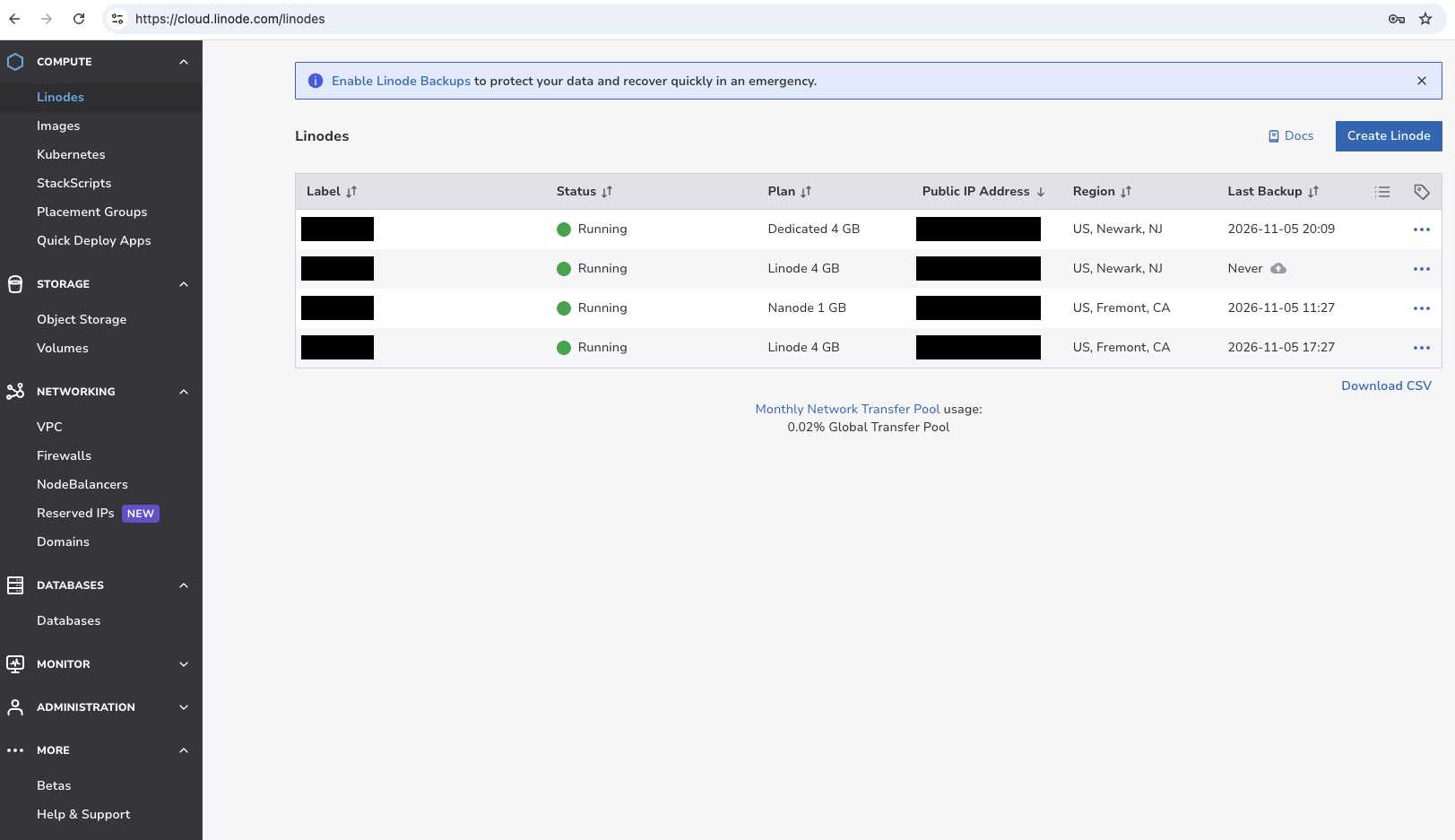
After you sign up for Linode, you will get access to a console where you can spin up new servers. Below is a screenshot of my Linodes page, where I have 4 servers running. For this tutorial, I will create a new one by clicking the Create Linode button.
Create a fresh Ubuntu 24.04 LTS server. If your provider lets you add an SSH key during setup, add the public key you created earlier. Next, create a firewall in your provider's dashboard so that the only way into the server from the internet is SSH:
- Inbound default: block everything (Linode calls this **Drop**).
- One inbound rule: allow TCP port 22.
- Outbound default: allow everything, because IB Gateway needs to reach Interactive Brokers.
Attach the firewall to your new server. Your server isn't protected until you do.
If you're using Linode, see Akamai's guides to setting up a Computer Instance and creating a Cloud Firewall.
Log in for the first time:
ssh root@YOUR_SERVER_IPThe first time you connect, SSH asks whether you trust the server. Type `yes` and press Enter.